Deleted files are rarely gone straight away. When a file is deleted or a drive is formatted, the computer usually just marks that space as free; the data stays there until something new is written over it. That is why what you do in the next few minutes matters more than anything else. Here is the first aid.
1. Stop using the drive. Now.
Every action that writes to the drive risks overwriting the file you want back: saving a document, downloading something, installing a program, even browsing the web on that computer, because the browser writes cache files constantly. If the file was on your laptop's main drive, shut the laptop down. If it was on a memory card, flash drive or external disk, unplug it and put it aside.
2. Check the easy places first
Before anything else, look in:
- Recycle Bin (Windows) or Trash (Mac). Right-click and restore.
- Cloud versions. If the folder syncs to OneDrive, Google Drive or iCloud, log in on the website and look under "Deleted files" or "Trash". Many services keep deleted files for 30 days.
- Previous versions. On Windows, right-click the folder the file was in and choose "Restore previous versions". On a Mac with Time Machine, open Time Machine in that folder.
- The app itself. Word, Excel and most editors keep autosaved versions under File, then Info or Recover Unsaved Documents.
3. Do not install recovery software on the same drive
This is the mistake that turns a recoverable file into an unrecoverable one. Downloading and installing a recovery tool onto the drive that lost the file writes hundreds of megabytes exactly where your data may be sitting. If you want to try software yourself, install it on a different computer and connect the affected drive to that machine, or run it from a USB stick.
4. Never format, even if the computer tells you to
A drive that suddenly shows "You need to format the disk before you can use it" is a drive with a damaged file system, not an empty one. The data is almost always still there. Click Cancel, unplug it, and bring it in. Formatting will not destroy everything, but it makes recovery harder and sometimes impossible.
5. If it makes a noise, power it off
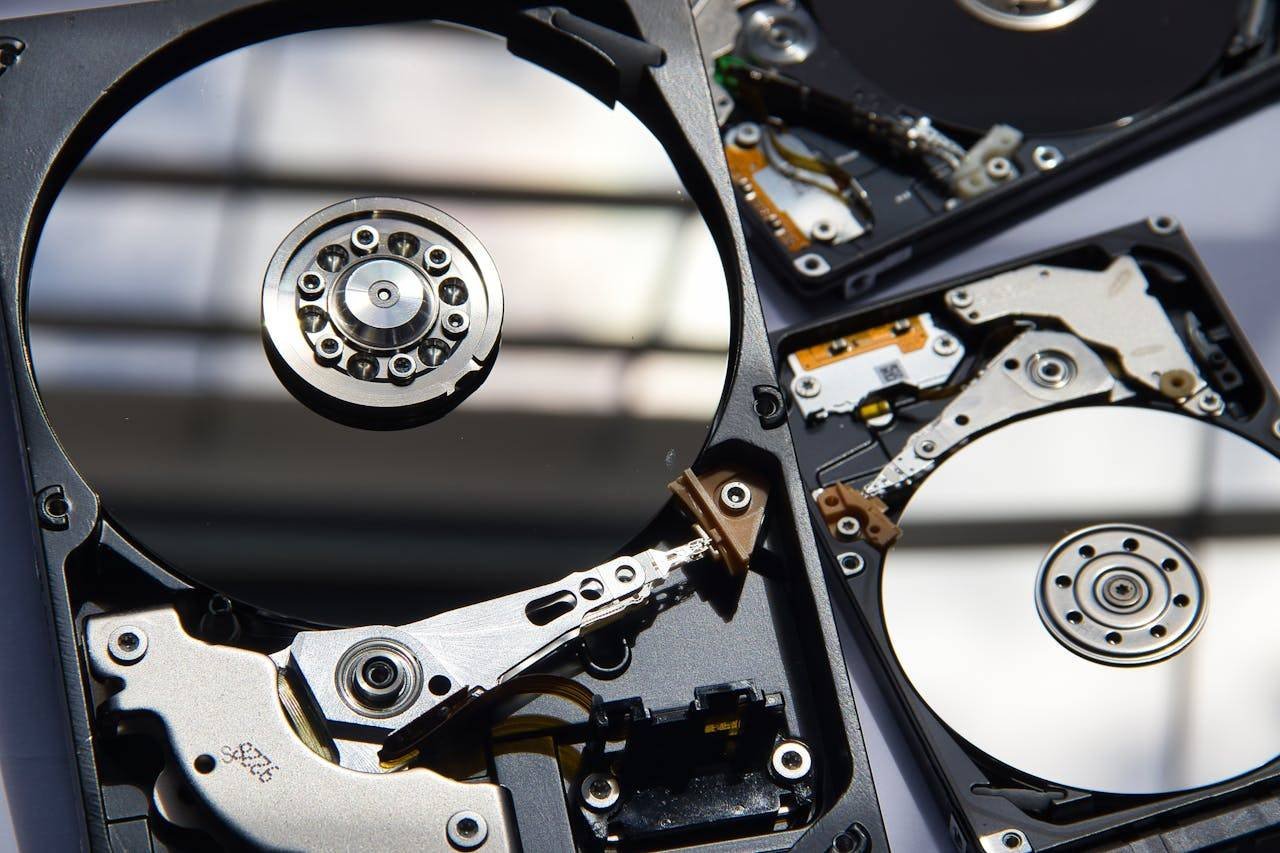
Clicking, ticking, grinding or beeping from a hard drive means a mechanical fault. Every second it spins does more damage to the platters. Power it off immediately and do not try any software. This is a clean-room job, and the chances of recovery are good if the drive has not been run for hours afterwards.
What we can recover
We routinely recover data from:
- Accidentally deleted files and emptied Recycle Bins
- Formatted drives and memory cards
- External drives and flash drives that "need to be formatted" or are not recognised
- Laptops that will not boot, where the drive is fine but Windows is not
- Phones with broken screens where photos need to be pulled off
- SSDs, hard drives and SD cards with logical or physical damage
Success is never guaranteed, especially after a physical failure or after the drive has been heavily used since the loss, which is why the first five steps matter so much. We evaluate for free and tell you the chances honestly before you spend anything.
Make sure it never matters again
The 3-2-1 rule is the simplest backup plan that actually works: three copies of anything important, on two different kinds of storage, with one of them somewhere else (cloud storage or an external drive kept at a different location). For businesses we set up automatic backups so nobody has to remember. It costs far less than a recovery, and much less than losing the files.
Need a hand with this?
Talk to a ModoTech technician in Membley, Ruiru. We reply fast on WhatsApp.